
Instrucciones de instalación
En esta página encontrarás todas las instrucciones necesarias para instalar y configurar correctamente tu pantalla. Si tienes cualquier duda, contáctanos por WhatsApp: 614 977 498.
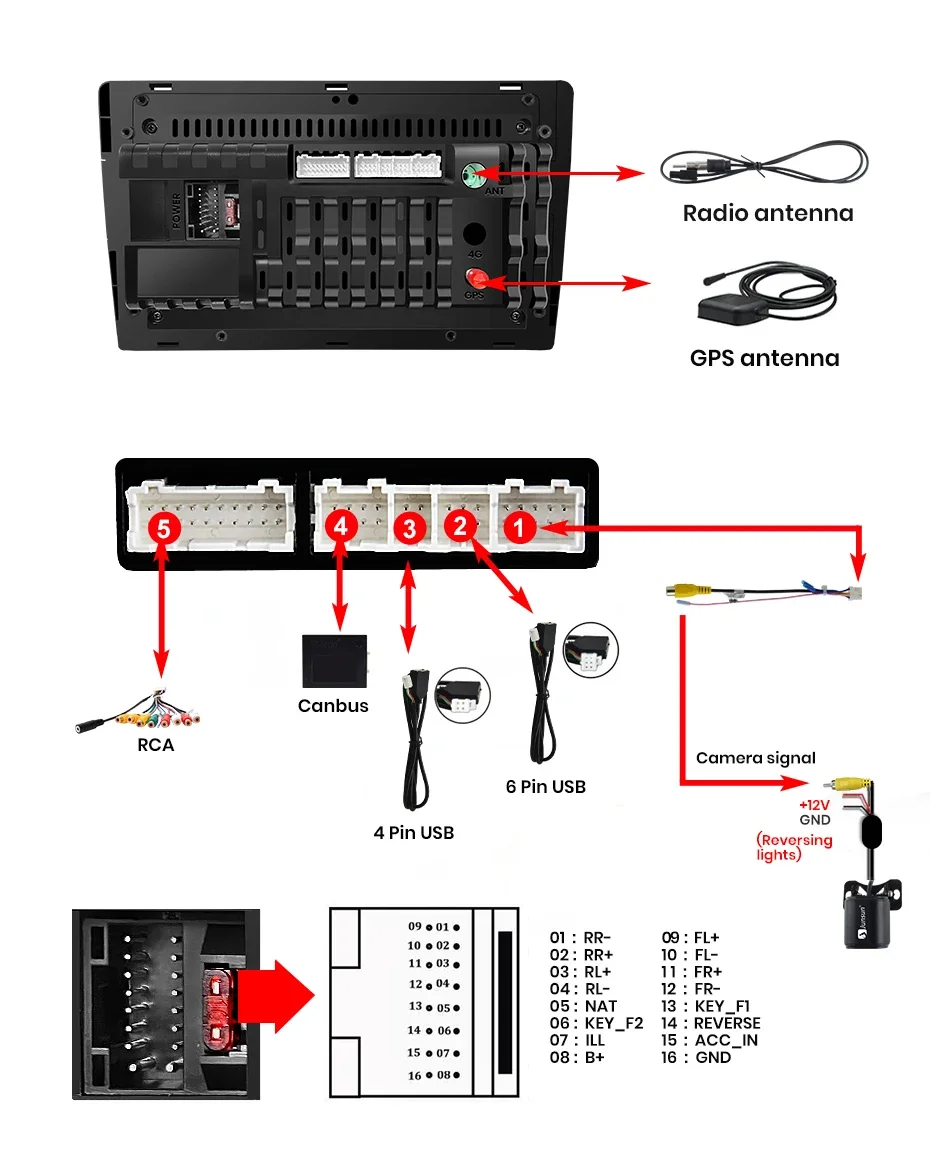
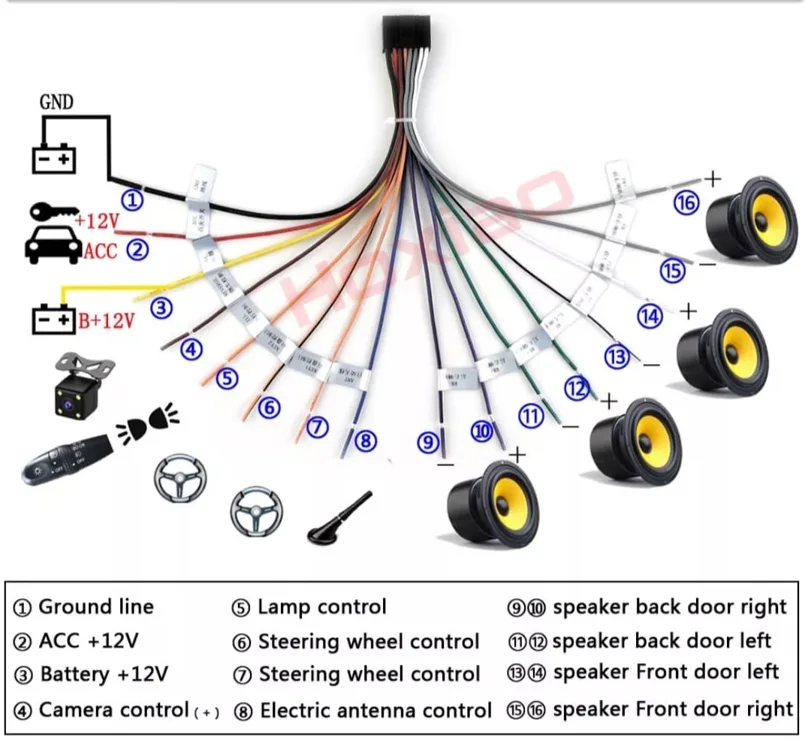
Método para conectar el cableado
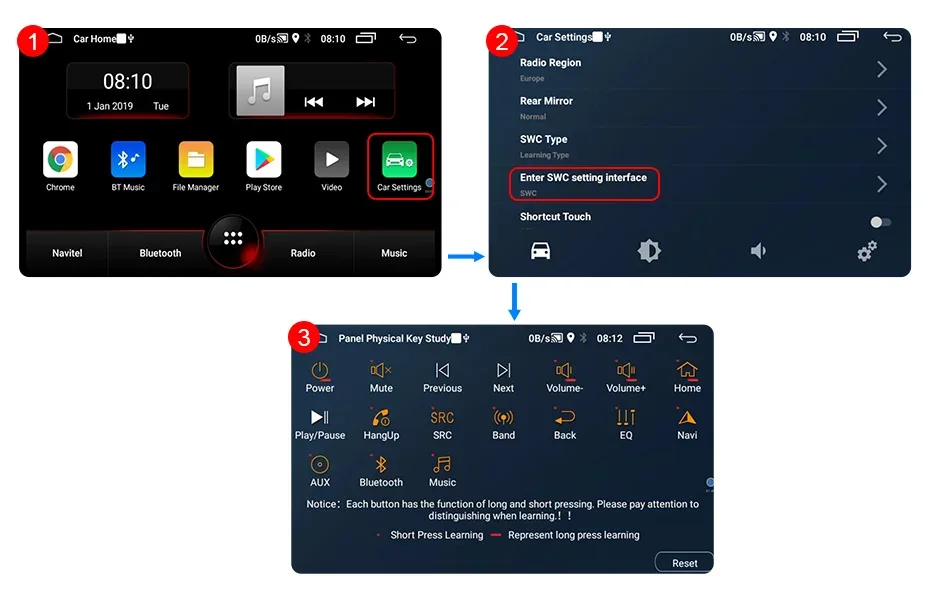
Método para configurar los mandos del volante (con CANBUS incluido)
Si tu producto incluye CANBUS en la caja, sigue estos pasos:
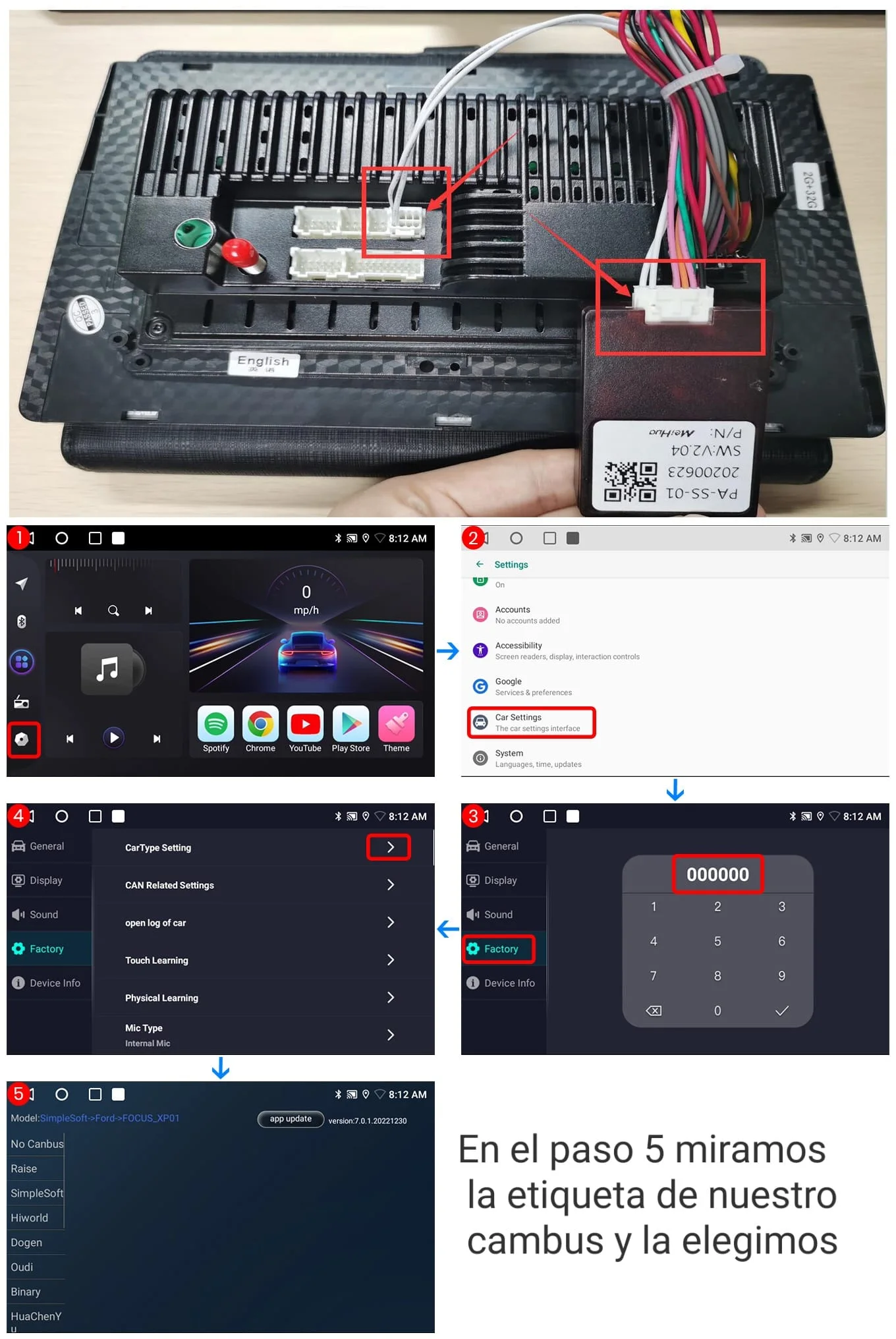
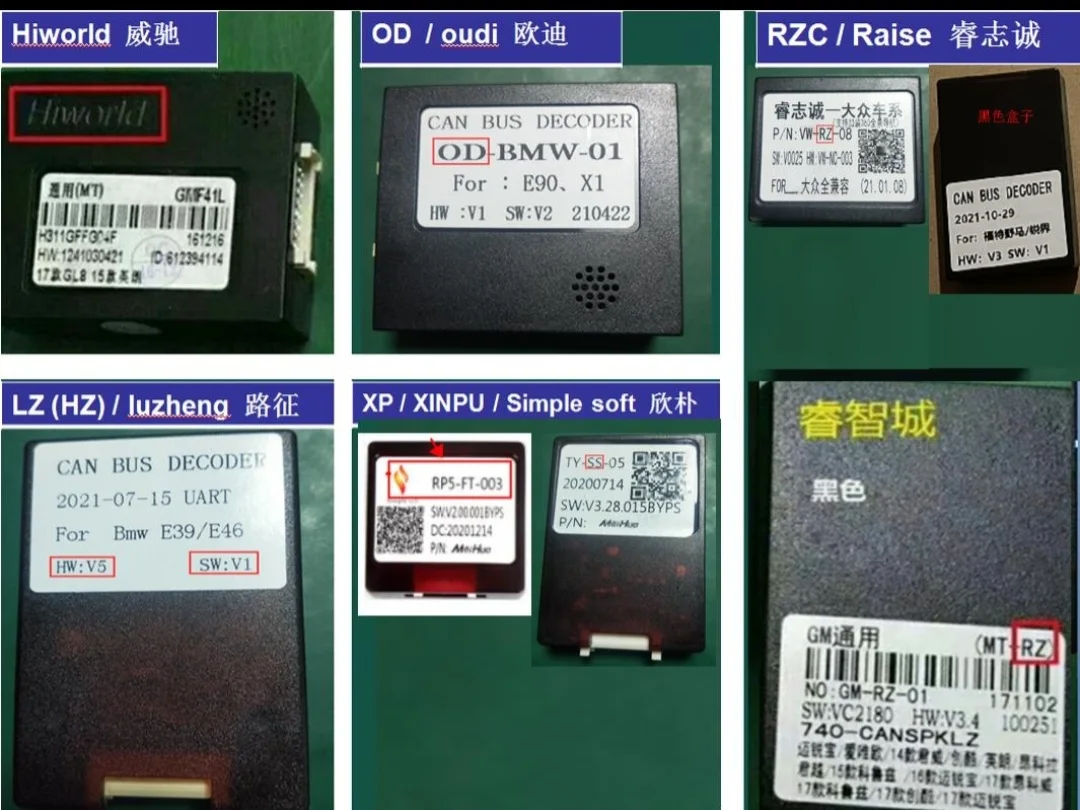
- Elige la etiqueta correspondiente a tu CANBUS (Raise, Simple Soft, Oudi, Luzheng, etc.).
- Dentro de esa etiqueta, selecciona el modelo de tu coche.
- Guarda los cambios.
- Apaga el coche y quita el contacto durante unos 15 segundos.
Método para configurar los mandos del volante (sin CANBUS)
Si tu producto no incluye CANBUS, sigue estos pasos:
- Ve a Ajustes > Car settings.
- Elige TOUCH LEARNING o SWC setting.
- Dentro de "Instrucciones para la dirección", pulsa las flechas redondas 🔄.
- Pulsa el botón de volumen + en la pantalla.
- A continuación, mantén pulsado ese mismo botón en el volante hasta que la pantalla parpadee.
- Repite el proceso con cada una de las teclas del volante.
Vídeo explicativo del proceso completo: https://youtu.be/mSzLWNYLx78
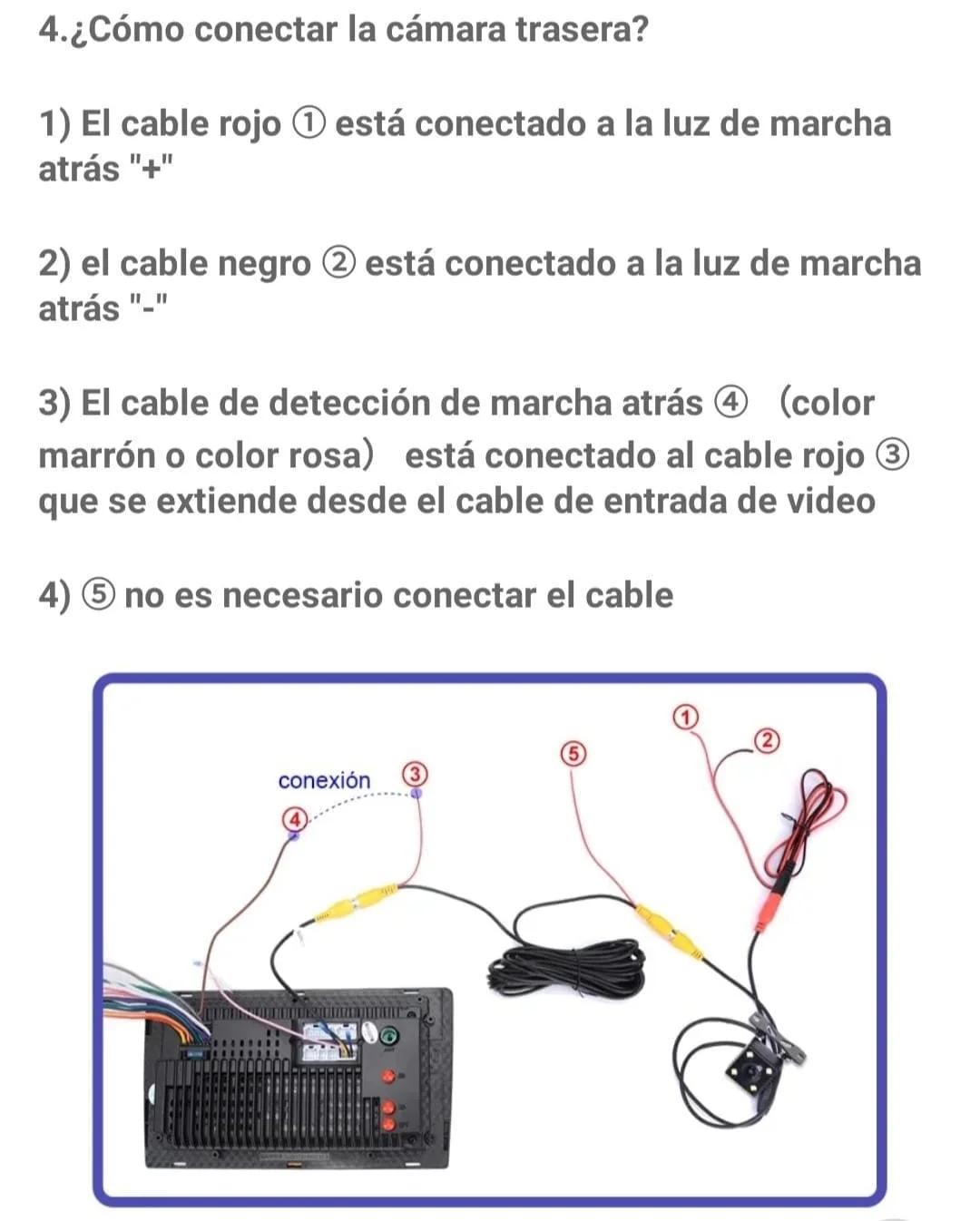
Método de conexión de la cámara de visión trasera
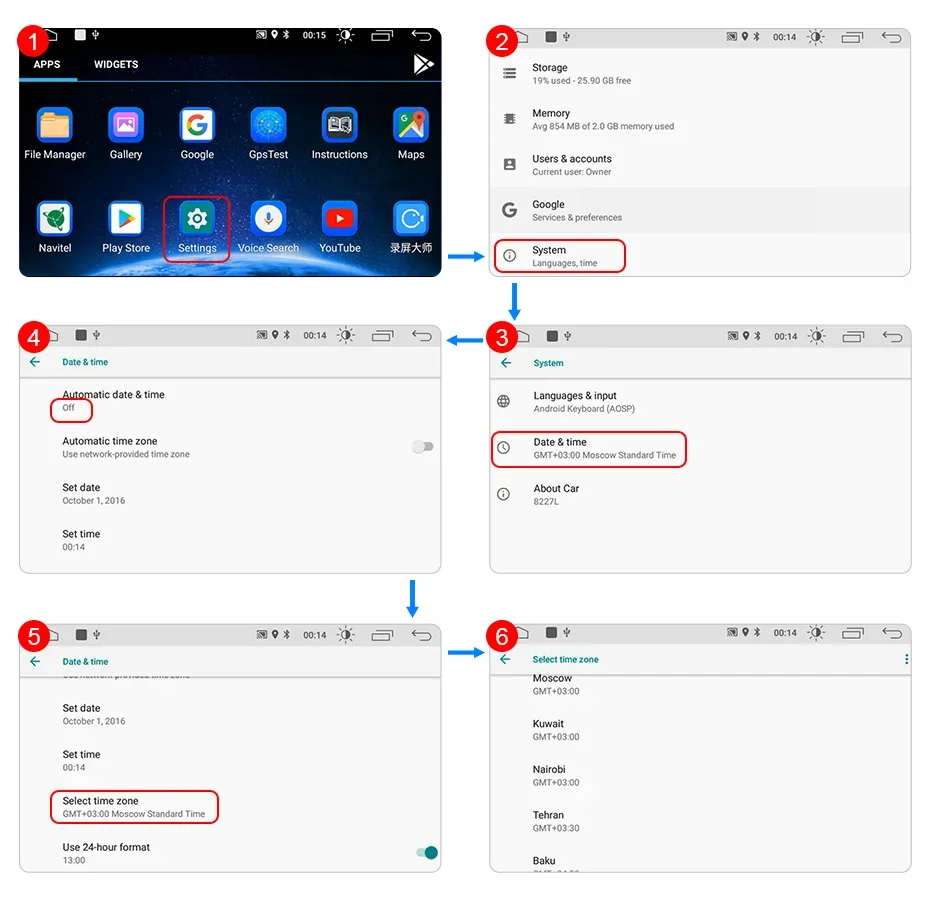
Método para cambiar la hora y el idioma
Para cambiar la hora: en el paso 3 elige Date & time.
Para cambiar el idioma: en el paso 3 elige Language, añade español y arrástralo por encima del idioma inglés.
Preguntas frecuentes
1. ¿Cómo conectar Carplay inalámbrico y Android Auto?
Para la primera conexión, es necesario encender el Bluetooth del teléfono para emparejarlo con el Bluetooth del coche.
Después de que el emparejamiento sea exitoso, la radio del automóvil saltará automáticamente a la interfaz Zlink o AutoLink.
En ese momento, aparecerá un mensaje en el teléfono: "Usar Carplay con Zlink o AutoLink".
Por último, enciende el WiFi del teléfono móvil y se conectará el Carplay.
2. ¿Cómo conectar Carplay con cable y Android Auto?
Utiliza tu cable de datos original para conectar el teléfono al cable USB de 4 pines. Después activa la función Carplay/Android Auto en tu teléfono y pulsa el icono AutoLink o ZLINK5 en el dispositivo para conectarte.
P: ¿Por qué la luz del botón no se enciende?
R: Cuando enciendas los faros del automóvil, se iluminará. Si sigue sin encenderse, significa que el cable de alimentación está suelto. Comprueba primero el cable de alimentación.
P: ¿Por qué falla la conexión Bluetooth?
R: Enciende el Bluetooth del teléfono y luego busca el nombre del dispositivo en tu teléfono. Si sigue sin funcionar:
- Comprueba si el cable de entrada de vídeo está enchufado. Los dos cables azules cortos son la señal de recepción de Bluetooth y WiFi.
- Ignora el dispositivo conectado en tu teléfono y vuelve a conectarlo.
- Intenta utilizar otro teléfono para conectarte.
P: ¿Por qué no funciona el USB normal?
R: Nuestros accesorios no están incluidos en el adaptador USB del coche original. Dado que ya tenemos dos puertos USB en nuestra máquina, te recomendamos utilizar nuestra función USB.
P: ¿Es compatible con micrófonos externos?
R: Sí, requiere cable RCA con puerto MIC.
P: ¿Puedo usar otras aplicaciones de mapas?
R: Instalamos el último mapa sin conexión de acuerdo con tu dirección antes del envío. Es gratis actualizarlo una vez al año. Si deseas usar otro mapa, puedes descargarlo en Play Store y usarlo en línea.
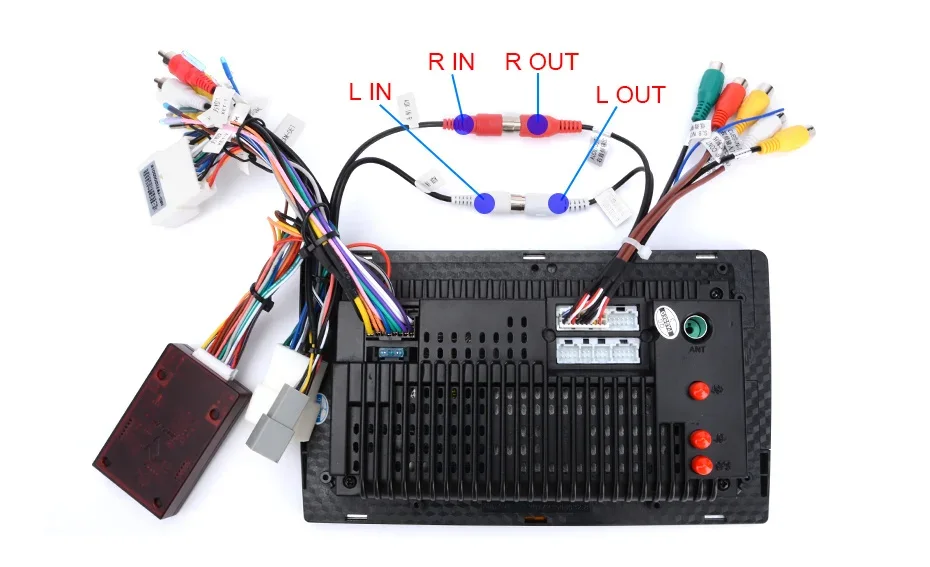
P: ¿Por qué no hay sonido después de instalar la máquina?
R: Si tu coche tiene un amplificador normal y el cable está equipado con CANbus (excepto los modelos Outlander), conecta L IN y R IN al cable RCA tal como se muestra en la imagen:
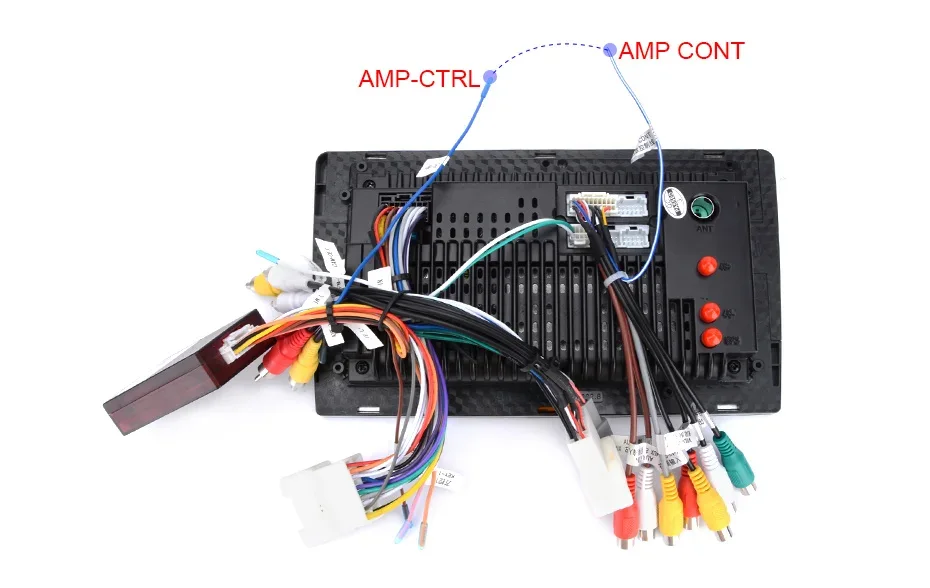
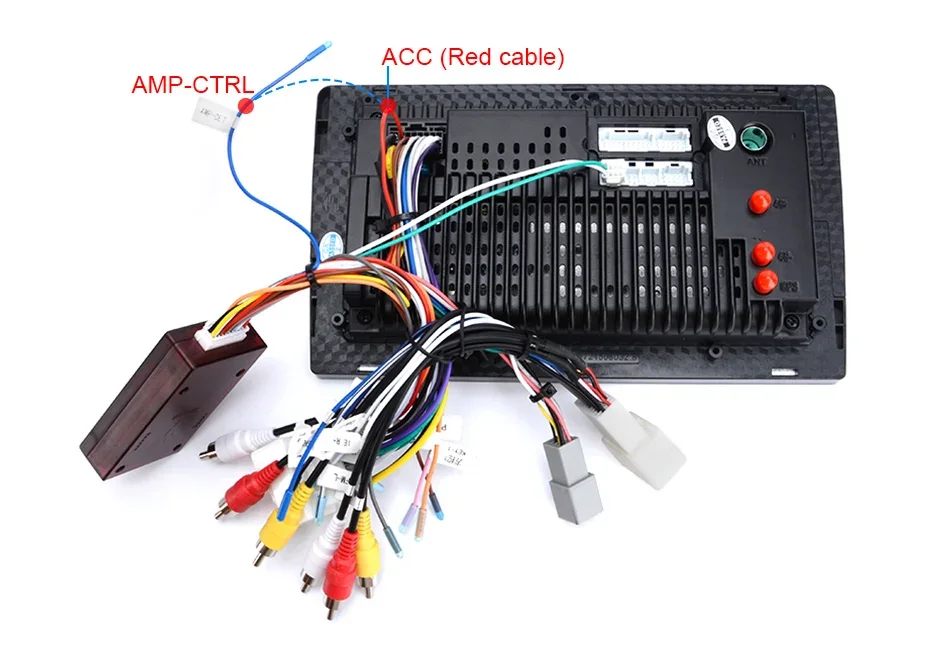
Método de cableado con amplificador Rockford
A. Si tienes cable RCA:
Conecta el cable AMP CTRL y el cable AMP CONT del RCA juntos. El sonido funcionará correctamente.
B. Si no tienes cable RCA:
Localiza el cable AMP CTRL y conéctalo al cable ACC (color rojo). Simplemente retira el plástico sin cortar. El sonido funcionará correctamente.
Si después de seguir estas instrucciones sigues teniendo dudas, no dudes en contactarnos por WhatsApp al 614 977 498. Estaremos encantados de ayudarte.